Resuscitation Manual: A Comprehensive Guide
This manual details critical life-saving procedures, encompassing BLS, ACLS, and NRP guidelines, updated with recent advances in neonatal cord management and ventilation.
Resuscitation encompasses a series of emergency procedures aimed at restoring life following cardiac arrest or respiratory failure. This manual provides a comprehensive overview, integrating the latest guidelines from organizations like the AHA and AAP. Effective resuscitation requires prompt recognition of distress, activation of emergency services, and immediate initiation of life support techniques. Understanding the principles of BLS, ACLS, and NRP is crucial for healthcare professionals and trained laypersons alike. This guide emphasizes the importance of teamwork, continuous assessment, and adaptation to evolving patient needs, ultimately improving survival rates.
The Importance of Early Intervention
Early intervention is paramount in successful resuscitation, significantly impacting patient outcomes. Each minute of delay decreases the probability of survival. Immediate initiation of CPR and rapid defibrillation, when indicated, are critical steps. Prompt recognition of cardiac or respiratory arrest, coupled with swift activation of emergency medical services, maximizes the chances of a positive result. Effective teamwork and streamlined protocols are essential for minimizing delays. This manual underscores that timely action, guided by current guidelines, is the cornerstone of effective resuscitation efforts.
Basic Life Support (BLS) – Adult
BLS for adults focuses on recognizing cardiac arrest and initiating immediate support. This includes checking for responsiveness, activating emergency services, and beginning chest compressions. High-quality compressions – at a rate of 100-120 per minute and a depth of at least 2 inches – are crucial. Rescue breaths, delivered after every 30 compressions, provide oxygenation. The BLS algorithm prioritizes early CPR and rapid defibrillation if a shockable rhythm is present, aiming to restore spontaneous circulation and preserve life.
Chest Compressions Technique
Effective chest compressions are fundamental to BLS. Position the heel of one hand in the center of the chest, with the other hand on top, interlacing fingers. Maintain a straight-arm position and compress the chest at least 2 inches (5 cm) but no more than 2.4 inches (6 cm). Compression rate should be 100-120 per minute, allowing for full chest recoil after each compression. Minimize interruptions to maintain adequate blood flow, crucial for brain and heart preservation during cardiac arrest.
Rescue Breaths – Proper Procedure
Following chest compressions, deliver rescue breaths to oxygenate the victim. Open the airway using the head-tilt/chin-lift maneuver, ensuring no obstructions. Pinch the nose shut, create a tight seal over the victim’s mouth with yours, and deliver two breaths lasting approximately one second each. Observe for visible chest rise with each breath. Avoid excessive ventilation; just enough to see the chest rise is sufficient. Continue cycles of 30 compressions and 2 breaths until advanced help arrives or the victim shows signs of life.
BLS Algorithm Overview
The Basic Life Support (BLS) algorithm prioritizes early CPR. First, ensure scene safety and check for responsiveness. Activate emergency services immediately. Begin chest compressions at a rate of 100-120 per minute, with a depth of at least 2 inches. After 30 compressions, deliver two rescue breaths. Continue CPR cycles until an AED arrives, advanced life support takes over, or the victim shows signs of life. Early defibrillation is crucial for shockable rhythms, maximizing survival chances.
Basic Life Support (BLS) – Child
Child BLS differs from adult protocols, requiring age-specific adaptations. Assess responsiveness and activate emergency services. CPR technique involves chest compressions – using one or two hands depending on the child’s size – aiming for a depth of approximately 2 inches. The compression rate remains 100-120 per minute. Rescue breaths are delivered with enough air to make the chest rise visibly. Prioritize rapid intervention, recognizing children often experience respiratory or cardiac arrest due to preventable causes.
Age-Specific Considerations
Pediatric resuscitation demands nuanced approaches. Infants and children have distinct anatomical and physiological differences. Causes of arrest vary; children often experience hypoxia from respiratory issues, while adults frequently face cardiac events. Assessment focuses on pediatric-specific vital signs and developmental stages. Compression depth and ventilation volume must be adjusted based on the child’s size. Recognizing these differences is crucial for effective BLS, ensuring appropriate interventions tailored to the patient’s age and condition.
Compression Depth and Rate for Children
Effective chest compressions are vital, but depth and rate differ from adults. For children, compress the chest approximately one-third the anterior-posterior diameter. The recommended compression rate remains 100-120 compressions per minute, allowing for full chest recoil after each compression. Infants require a shallower depth, roughly 4 cm (1.5 inches). Consistent, high-quality compressions maximize blood flow, improving the chances of successful resuscitation. Proper technique minimizes fatigue and optimizes outcomes in pediatric emergencies.
Basic Life Support (BLS) – Infant
Infant BLS differs significantly from adult and child protocols. Assess for responsiveness and breathing; if absent, activate emergency services. Chest compressions utilize two fingers (or two thumbs encircling the chest) at a depth of about 1.5 inches. The compression rate remains 100-120 per minute. Rescue breaths are gentle puffs, observing for chest rise. Choking management involves back blows and chest thrusts. Prioritize rapid assessment and intervention, adapting techniques to the infant’s smaller size and fragile anatomy.

Infant CPR Differences

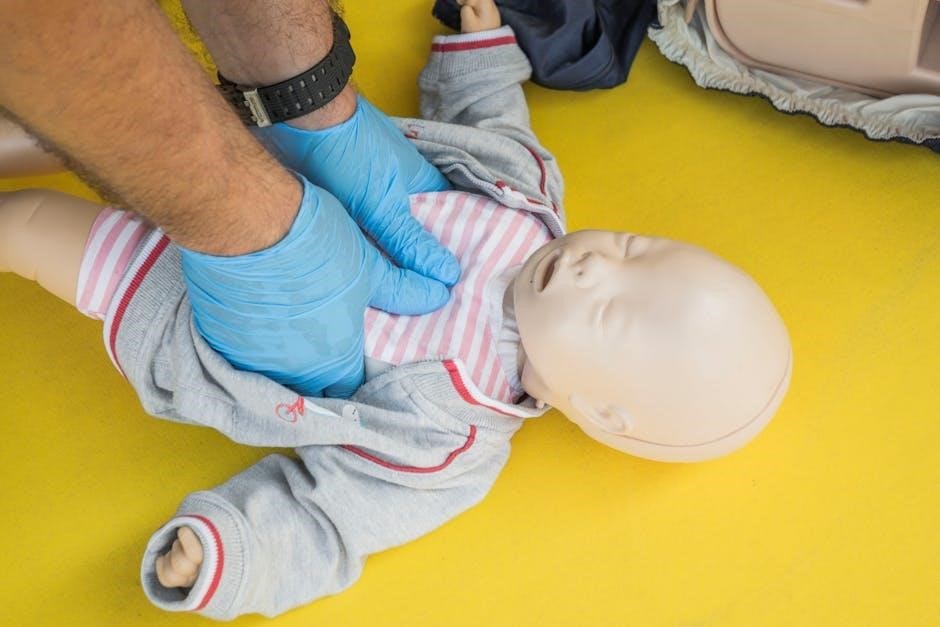
Infant CPR requires specific modifications due to their unique anatomy. Unlike adults, infants often experience respiratory failure secondary to cardiac issues. Compressions are performed with two fingers or encircling thumbs, delivering compressions approximately 4cm deep. The compression-to-ventilation ratio is 30:2 for a single rescuer. Gentle breaths are crucial, avoiding over-inflation. Assessing pulse via the brachial artery is preferred. Recognizing and addressing choking is paramount, utilizing back blows and chest thrusts.
Choking Management in Infants
Infant choking requires immediate intervention, differing significantly from adult protocols. Begin with five firm back blows, delivered between the shoulder blades, while supporting the infant’s head and jaw. If unsuccessful, proceed with five chest thrusts using two fingers on the sternum, just below the nipple line. Alternate between back blows and chest thrusts until the object is dislodged or the infant becomes unresponsive. If unresponsiveness occurs, initiate infant CPR, checking for the object before rescue breaths.
Advanced Cardiovascular Life Support (ACLS)
ACLS builds upon BLS, addressing complex cardiovascular emergencies. It necessitates advanced airway management techniques, including endotracheal intubation, and pharmacological interventions like epinephrine and amiodarone. Effective ACLS relies on rapid rhythm identification and adherence to established algorithms, particularly for ventricular fibrillation and pulseless ventricular tachycardia. Continuous ECG monitoring, capnography, and vascular access are crucial. Teamwork and clear communication are paramount for successful resuscitation outcomes during these critical events.
Airway Management Techniques
Securing a patent airway is fundamental in ACLS. Techniques range from simple maneuvers like head-tilt/chin-lift and jaw-thrust to advanced methods like endotracheal intubation. Proper intubation requires skill and confirmation via capnography and auscultation. Alternative airway devices, such as laryngeal mask airways (LMAs), offer viable options when intubation is challenging. Suctioning is essential to clear obstructions. Maintaining airway patency ensures effective ventilation and oxygenation, critical for successful resuscitation efforts and patient stabilization.
Pharmacological Interventions in ACLS
ACLS utilizes specific drugs to address cardiac arrest rhythms. Epinephrine is crucial for increasing coronary perfusion pressure and myocardial contractility. Amiodarone or lidocaine are used for refractory ventricular fibrillation. Vasopressin may be considered as an alternative to epinephrine. Sodium bicarbonate has limited role, reserved for specific situations like hyperkalemia. Drug administration requires precise dosing and timely delivery, guided by ACLS algorithms. Continuous monitoring for drug effects and potential adverse reactions is paramount for optimal patient outcomes.
ACLS Algorithms – Ventricular Fibrillation/Pulseless Vena Tassa
Ventricular fibrillation (VF) and pulseless ventricular tachycardia (VT) demand immediate action. The ACLS algorithm prioritizes CPR, defibrillation, and epinephrine administration. Defibrillation energy levels escalate with subsequent shocks. Amiodarone or lidocaine are administered after unsuccessful defibrillation attempts. Continuous chest compressions are vital throughout the process. Return of spontaneous circulation (ROSC) necessitates post-cardiac arrest care. Effective teamwork and adherence to the algorithm are crucial for improving survival rates in these critical cardiac emergencies.
Neonatal Resuscitation Program (NRP)
The Neonatal Resuscitation Program (NRP) focuses on standardized care for newborns requiring resuscitation. Initial assessment involves evaluating respiration, heart rate, and muscle tone using the Apgar score. Positive Pressure Ventilation (PPV) is often the first intervention for newborns with inadequate breathing. Proper umbilical cord management, including delayed clamping when appropriate, is emphasized. NRP training equips healthcare providers with the skills to effectively manage common neonatal emergencies and improve newborn outcomes.
Initial Assessment of the Newborn
A rapid, systematic assessment is crucial immediately after birth. This begins with evaluating the newborn’s appearance – skin color – and breathing effort, including respiratory rate and presence of sounds. Simultaneously, assess heart rate, ideally auscultated or via pulse oximetry. Muscle tone is also quickly evaluated. The Apgar score, assigned at one and five minutes, provides a standardized summary of these observations. This initial assessment guides subsequent resuscitation efforts, determining the need for interventions like PPV.
Positive Pressure Ventilation (PPV)
PPV is a cornerstone of neonatal resuscitation when spontaneous breathing is inadequate. It delivers air or oxygen to the lungs, assisting with inflation and gas exchange. Effective PPV requires proper technique: a tight mask seal, appropriate pressure settings (typically 20-60 cm H2O), and observation for chest rise. Monitoring is vital – look for visible chest movement with each breath. If chest rise is absent, reassess mask seal, airway position, and consider increasing pressure gradually.
Umbilical Cord Management
Delayed umbilical cord clamping (DUCC) is now recommended for most newborns, improving outcomes by allowing placental transfusion. However, immediate clamping may be necessary in certain situations, like compromised fetal breathing or need for immediate resuscitation. Regardless, avoid milking the cord, as it doesn’t improve oxygenation and can increase risk. Proper cord care post-clamping is essential to prevent infection. Current guidelines emphasize individualized assessment to determine the optimal timing for cord clamping.

Automated External Defibrillator (AED) Usage
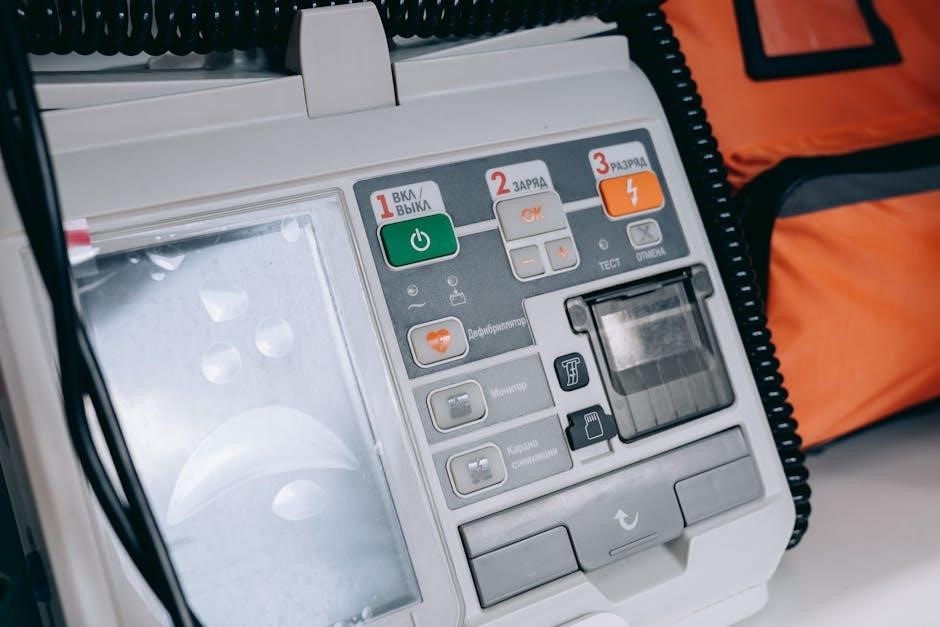
AEDs are crucial for treating sudden cardiac arrest, analyzing heart rhythm and delivering shocks if needed. Ensure scene safety before use, and call emergency services immediately. Proper pad placement – one on the upper right chest, the other on the lower left side – is vital. Follow the AED’s voice prompts precisely. Minimize interruptions to chest compressions. AEDs are safe for rescuers and patients when used correctly, but avoid contact with the patient during shock delivery.
AED Pad Placement
Correct AED pad placement is paramount for effective defibrillation. One pad should be applied to the upper right chest, just below the collarbone. The second pad goes on the lower left side of the chest, a few inches below the armpit. Ensure skin is dry and free of hair for optimal adhesion; shave if necessary. Avoid placing pads over pacemakers or implanted defibrillators. Follow the diagrams printed on the pads themselves for precise positioning, maximizing shock delivery to the heart.
AED Safety Precautions

Prioritize safety when using an AED. Ensure the area is clear of bystanders – shout “Clear!” before each shock. Never touch the patient while the AED is analyzing or delivering a shock. Avoid using an AED in wet conditions or near flammable materials. Do not use adult pads on infants or children; pediatric pads are essential. Regularly check the AED’s battery and pad expiration dates. Proper training is crucial; always follow the AED’s voice prompts and local protocols.
Resuscitation for Specific Conditions
Resuscitation protocols vary based on the emergency. Drowning victims require immediate ventilation, often before compressions, addressing potential water aspiration. Drug overdose necessitates airway management and potentially naloxone administration, depending on the substance. Hypothermia demands gentle handling to avoid triggering arrhythmias. Consider underlying causes like trauma or anaphylaxis, tailoring interventions accordingly. Always prioritize rapid assessment and support of vital functions, adapting BLS/ACLS guidelines to the specific clinical scenario.
Drowning Resuscitation Protocols

Drowning resuscitation prioritizes immediate airway opening and ventilation. Initial efforts focus on rescue breaths, assuming hypoxia is the primary issue, even before chest compressions. Avoid prolonged attempts to drain water from the lungs, as this delays vital interventions. Assess for signs of life while initiating rescue breaths. If no signs, begin CPR with compressions following ventilation. Monitor for pulmonary edema and provide supplemental oxygen. Rapid transport to a medical facility is crucial for continued care and assessment.
Drug Overdose Resuscitation
Drug overdose resuscitation requires rapid assessment of airway, breathing, and circulation. Opioid overdoses often necessitate naloxone administration, reversing respiratory depression. Support ventilation with bag-valve-mask if breathing is inadequate. Monitor vital signs closely, anticipating potential complications like arrhythmias or seizures. Consider the possibility of polysubstance use, influencing treatment strategies. Ensure scene safety and protect rescuers from exposure. Prompt transport to a hospital is essential for definitive care and further evaluation.
Legal and Ethical Considerations in Resuscitation

Resuscitation efforts are guided by legal and ethical principles, including informed consent and respecting patient autonomy. Do Not Resuscitate (DNR) orders must be honored, requiring verification of validity and scope. Understanding Good Samaritan laws protects rescuers from liability when providing emergency care. Capacity to consent is crucial; if absent, surrogate decision-makers are needed. Documentation of all interventions and discussions is vital. Ethical dilemmas may arise, necessitating consultation with legal counsel or ethics committees.
Do Not Resuscitate (DNR) Orders
Do Not Resuscitate (DNR) orders are legal documents outlining a patient’s wish to forgo certain life-sustaining treatments, like CPR. Healthcare providers must validate DNR orders, confirming authenticity and scope – specifying which interventions are declined. These orders should be clearly documented in the patient’s chart and readily accessible. Respecting a valid DNR is ethically and legally mandated. Confusion can arise with POLST/MOLST forms; understanding distinctions is crucial. Ongoing communication with patients and families regarding DNR decisions is essential.
Consent and Refusal of Treatment
Informed consent is paramount before initiating resuscitation, when possible. This requires explaining the procedure, risks, and benefits to the patient (or their legal representative). Patients have the right to refuse treatment, even life-saving interventions, and this refusal must be respected. Exceptions exist, such as when a patient is incapacitated and lacks an advance directive. Implied consent may apply in emergency situations where immediate action is necessary to preserve life or prevent serious harm. Documentation of consent or refusal is critical.
Psychological Impact of Resuscitation
Resuscitation events are profoundly stressful for both rescuers and witnesses. Rescuers may experience anxiety, guilt, and post-traumatic stress, necessitating access to debriefing and support services. Witnessing a resuscitation can be deeply disturbing for family members, requiring compassionate communication and grief support. Providing psychological first aid is crucial, acknowledging their emotional distress and offering resources. Recognizing the potential for long-term psychological effects is vital for both those involved in delivering and observing resuscitation efforts.
Stress Management for Rescuers

Resuscitation teams face intense pressure and emotional strain. Implementing strategies for stress management is paramount. Critical incident stress debriefing (CISD) provides a structured forum to process experiences. Peer support networks offer ongoing emotional assistance. Regular training and simulation exercises build confidence and reduce anxiety. Self-care practices, like mindfulness and physical activity, are essential. Recognizing personal limits and seeking professional help when needed are signs of strength, not weakness, ensuring rescuer well-being.
Grief and Bereavement Support
Despite best efforts, resuscitation isn’t always successful, leading to profound grief for families and rescuers. Providing compassionate communication and acknowledging their loss is crucial. Offer practical assistance with arrangements and connect them with bereavement resources. Rescuers should acknowledge their own grief and seek support from colleagues or mental health professionals. Facilitating access to grief counseling and support groups can aid the healing process. Recognizing the emotional toll on all involved is vital for holistic care.
Post-Resuscitation Care
Following successful resuscitation, meticulous monitoring and stabilization are paramount. Assess vital signs frequently, including oxygen saturation, blood pressure, and neurological status. Address underlying causes of the arrest, such as hypoxia or electrolyte imbalances. Maintain airway patency and provide continued ventilatory support as needed. Prepare for potential complications like post-cardiac arrest syndrome. Prompt transfer to a definitive care facility – ideally an intensive care unit – is essential for ongoing management and optimization of recovery.
Monitoring and Stabilization
Continuous monitoring is crucial post-resuscitation, assessing vital signs – ECG, blood pressure, pulse oximetry, respiratory rate – at frequent intervals. Maintain adequate oxygenation and ventilation, adjusting settings as needed. Address any identified imbalances, correcting electrolyte disturbances and optimizing fluid status. Neurological assessments are vital to detect any post-arrest brain injury. Temperature management is key, aiming to prevent hyperthermia. Prepare for potential complications, proactively managing blood glucose and initiating targeted temperature management if indicated.
Transfer to Definitive Care
Seamless transfer to a higher level of care is paramount after initial stabilization. Provide a detailed handover, including the resuscitation events, medications administered, and the patient’s current status. Continuous monitoring should accompany the transfer, ensuring vital signs remain stable. Maintain airway control and ventilation support during transport. Anticipate potential deterioration and have necessary equipment readily available. Clear communication with the receiving facility is essential for optimal continuity of care and improved patient outcomes.
Resuscitation Training and Certification
Regular, high-quality training is crucial for effective resuscitation. BLS, ACLS, and NRP courses provide essential skills and knowledge. Certification demonstrates competency, but ongoing education is vital to stay current with evolving guidelines. Participate in refresher courses and simulations to maintain proficiency. Healthcare professionals should adhere to continuing education requirements mandated by their institutions and licensing boards. Prioritize team-based training to enhance coordination and improve patient survival rates during critical events.
BLS, ACLS, and NRP Courses
Basic Life Support (BLS) courses cover adult, child, and infant resuscitation techniques, focusing on chest compressions and airway management. Advanced Cardiovascular Life Support (ACLS) builds upon BLS, adding pharmacological interventions and advanced rhythm analysis. Neonatal Resuscitation Program (NRP) specifically trains providers in newborn resuscitation, emphasizing initial assessment, ventilation, and cord management. These courses utilize a blend of lectures, skill stations, and scenario-based simulations to ensure competency. Certification is typically valid for two years, requiring recertification thereafter.
Continuing Education Requirements
Maintaining resuscitation proficiency demands ongoing education. BLS, ACLS, and NRP certifications generally require renewal every two years. Recertification courses offer updates on the latest guidelines and techniques, reflecting advancements in resuscitation science. Many healthcare organizations mandate regular participation in continuing medical education (CME) focused on cardiac arrest management. Some regions may have specific requirements dictated by licensing boards or hospital policies. Consistent practice and skill refreshers are crucial to ensure effective response during emergencies, bolstering rescuer confidence and patient outcomes.
Recent Advances in Resuscitation Techniques
Resuscitation practices are continually evolving. Improved ventilation strategies, emphasizing optimized tidal volumes and minimizing ventilation-induced lung injury, are gaining prominence. Novel pharmacological agents, exploring alternatives to traditional drugs, are under investigation to enhance cardiac function and neurological recovery. Enhanced focus on early recognition of deterioration and proactive intervention is crucial. Furthermore, advancements in neonatal resuscitation, particularly regarding umbilical cord management and post-birth ventilatory support, are improving newborn outcomes, reflecting a commitment to evidence-based care.
Improved Ventilation Strategies
Effective ventilation remains central to successful resuscitation. Current strategies prioritize optimized tidal volumes, aiming to balance oxygenation with minimizing ventilator-induced lung injury. Techniques like bag-valve-mask ventilation are refined for improved seal and delivery. End-tidal CO2 monitoring guides ventilation adjustments, ensuring adequate cerebral perfusion. In neonatal resuscitation, strategies focus on gentle, effective positive pressure ventilation, minimizing barotrauma. Continuous assessment and adjustment based on patient response are paramount for maximizing outcomes and reducing complications.
Novel Pharmacological Agents
Research continues to explore new pharmacological interventions in resuscitation. While epinephrine remains a cornerstone, investigations focus on vasopressors with improved hemodynamic profiles and reduced adverse effects. Novel agents targeting mitochondrial dysfunction show promise in restoring cellular energy production. Studies are evaluating the role of adjunct therapies like magnesium and therapeutic hypothermia. Further research is needed to determine optimal dosages and timing for these agents, integrating them into established ACLS algorithms to enhance survival rates and neurological outcomes.